...
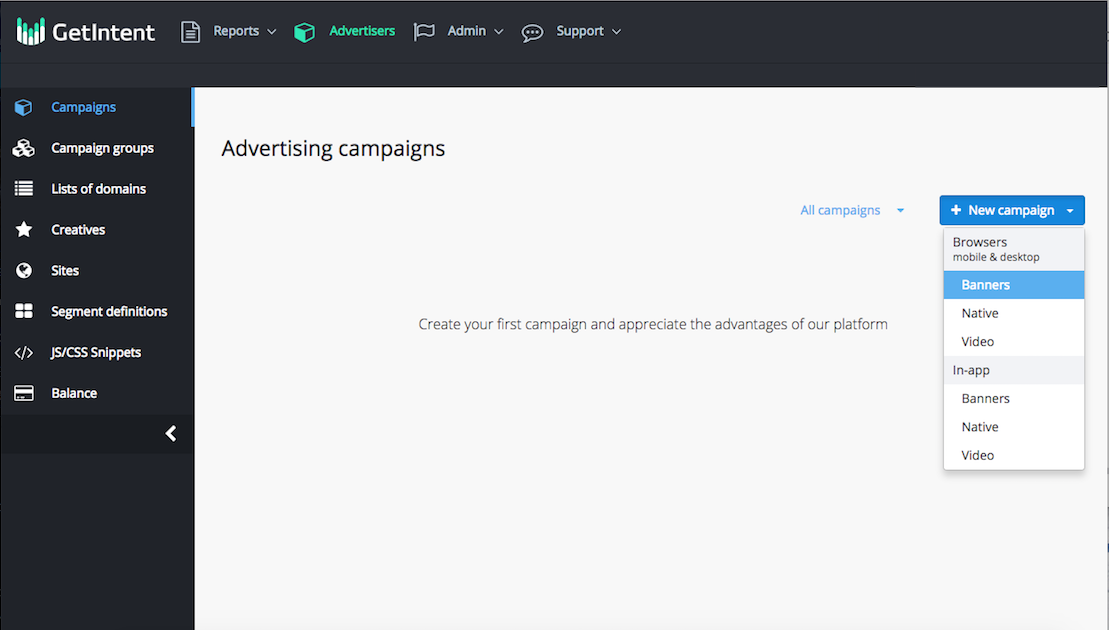
1. Go to the "Campaigns" tab and create a new browser desktop advertising campaign. For this, press "New campaign" and choose, what kind of creative you want to use - Banners, Native or Video. Different types of creatives will lead to different creative settings later:
2. For all the types of creatives, there are similar sets of settings, divided into tabs and sections, which will be examined separately. You may see the following tabs on your "New campaign" page:
a) Basic
b) Targeting
c) Advanced Targeting
d) Negative Targeting
e) Other
Basic
Inside this tab you can see several sections - basic options, pricing, creatives and comission
First, you have to fill basic fields:
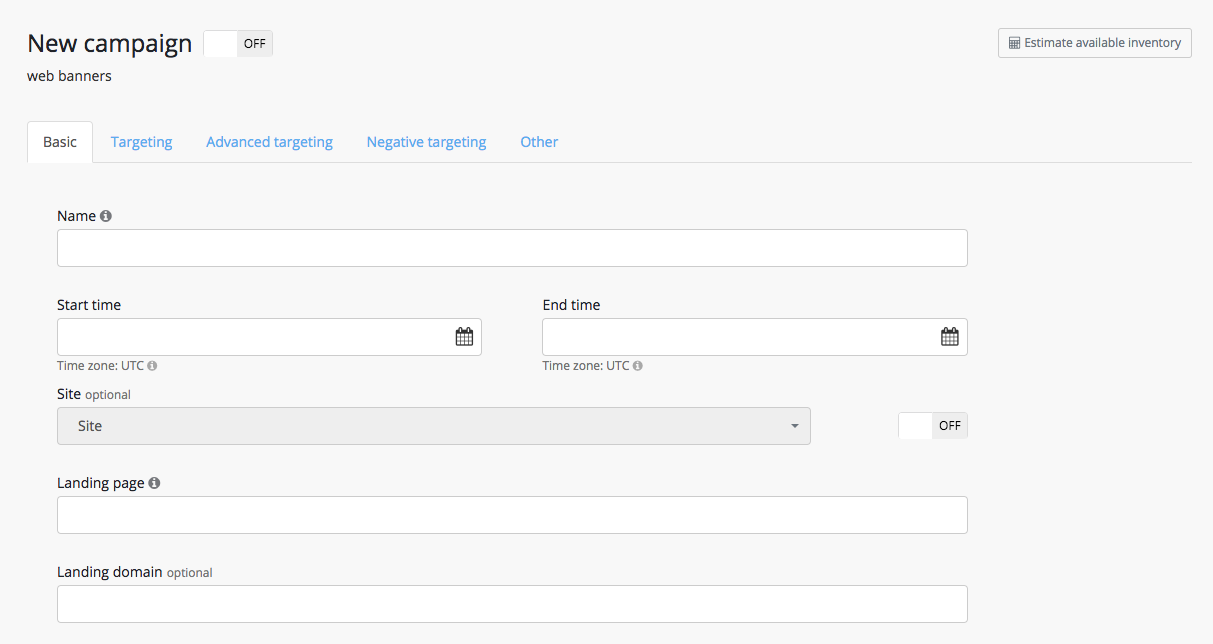 Image Added
«Name» - enter the campaign name. The name must be entered in Latin alphabet with no spaces, in order to use it in UTM-tag if needed.
«Start Time» - «End Time» - enter the campaign period. The campaign budget will be spread evenly over this timeframe.
«Site» - this field is for a dynamic retargeting. For more information: see Retargeting
«Landing page» - enter the URL of the landing page (direct or through a tracking system).
«Landing page» - enter the landing domain (optional).
Second, you have to adjust the budget:
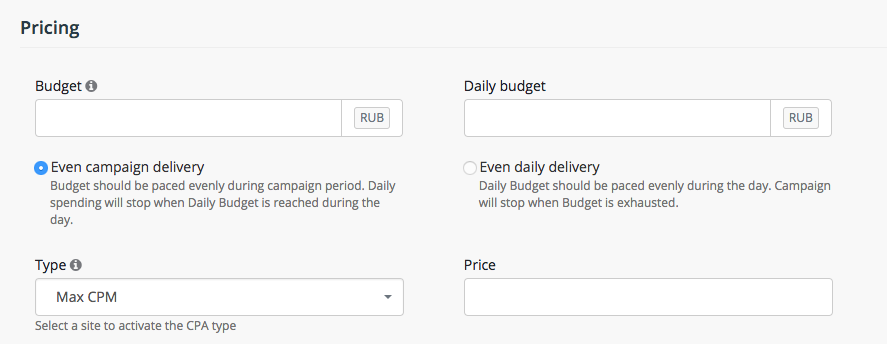 Image Added
«Budget» - enter the budget of the campaign (excluding tax)
«Daily Budget» - a daily budget limit for a campaign (excluding tax)
«Even daily/Even campaign delivery» - choosing one of those options, you will have your budget spent in different ways. With even campaign delivery, your budget is paced evenly during campaign period, and with daily spending your campaign stops when Daily Budget is reached during the day.
«Type» - choose one of the following options:
Fixed CPM – selecting this option, you should set a fixed CPM price (excluding tax) in the «Price» field. Other parameters will be calculated on the basis of this value.
Max CPM – selecting this option, you should set a maximum CPM price (excluding tax) in the «Price» field. With this setting, the system will buy traffic with a cost lower than the value in the «Price» field.
Target CPC – this option runs the Click Predictor algorithm, which will keep the cost of clicks equal to or lower than the value in the «Price» field to the extent possible possible. This option does not work in all cases because it depends on many factors: creative materials, client’s business area, etc
Fixed CPA -
Target CPA -
Fixed CPC -