Desktop (browser) campaign -
...
a campaign which targets web domains. Such campaigns include views from Desktop, Phone, Tablet, Smart TV and Game Console devices – wherever web Browser can be launched. You can select the device type in the campaign’s setting menu.
...
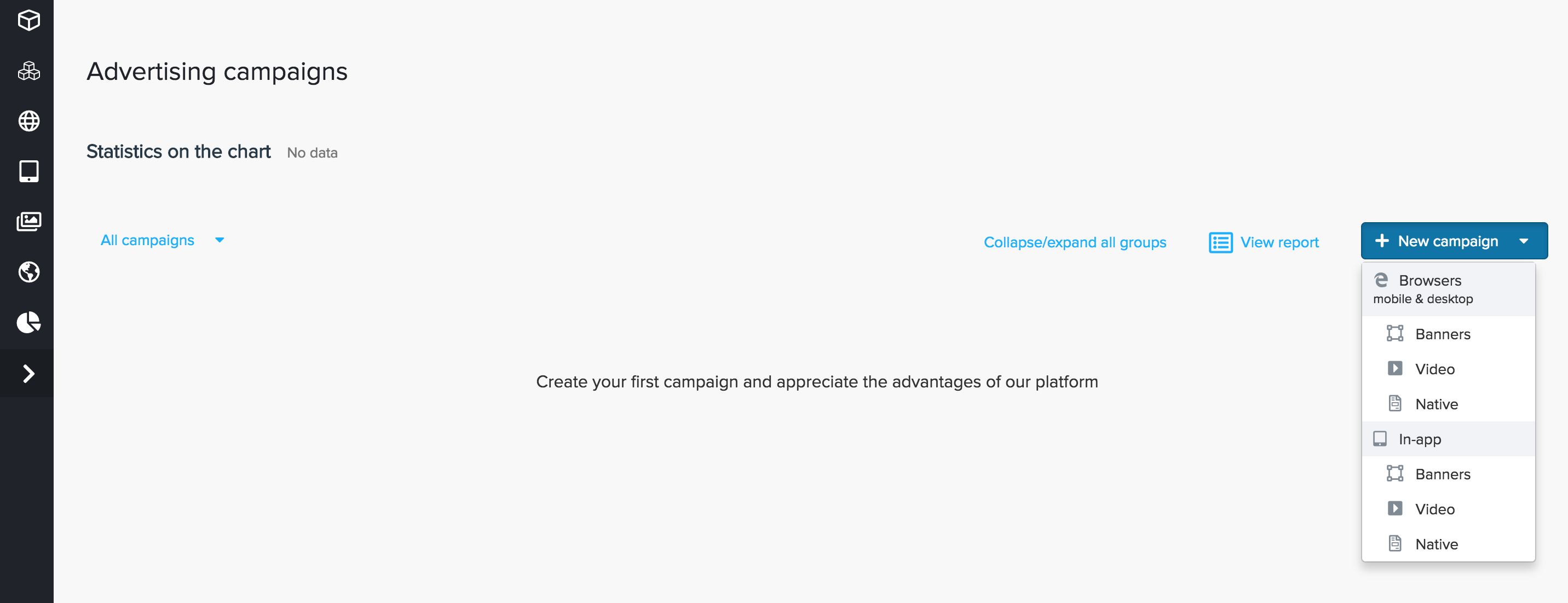
Go to the "Campaigns" tab and create a new browser desktop advertising campaign. For this, press "New campaign" and choose, what kind of creative do you want to use - Banners, Native or Video. Different types of creatives will lead to different creative settings later:
...
...
For all the types of creatives, there are similar sets of settings, divided into tabs and sections, which will be examined separately. You may see the following tabs on your "New campaign" page:
a) Basic
b) Targeting
c) Advanced Targeting
d) Negative Targeting
| Оглавление | ||||
|---|---|---|---|---|
|
...
Basic
Inside this tab, you can see several sections - basic options, pricing, creatives
...
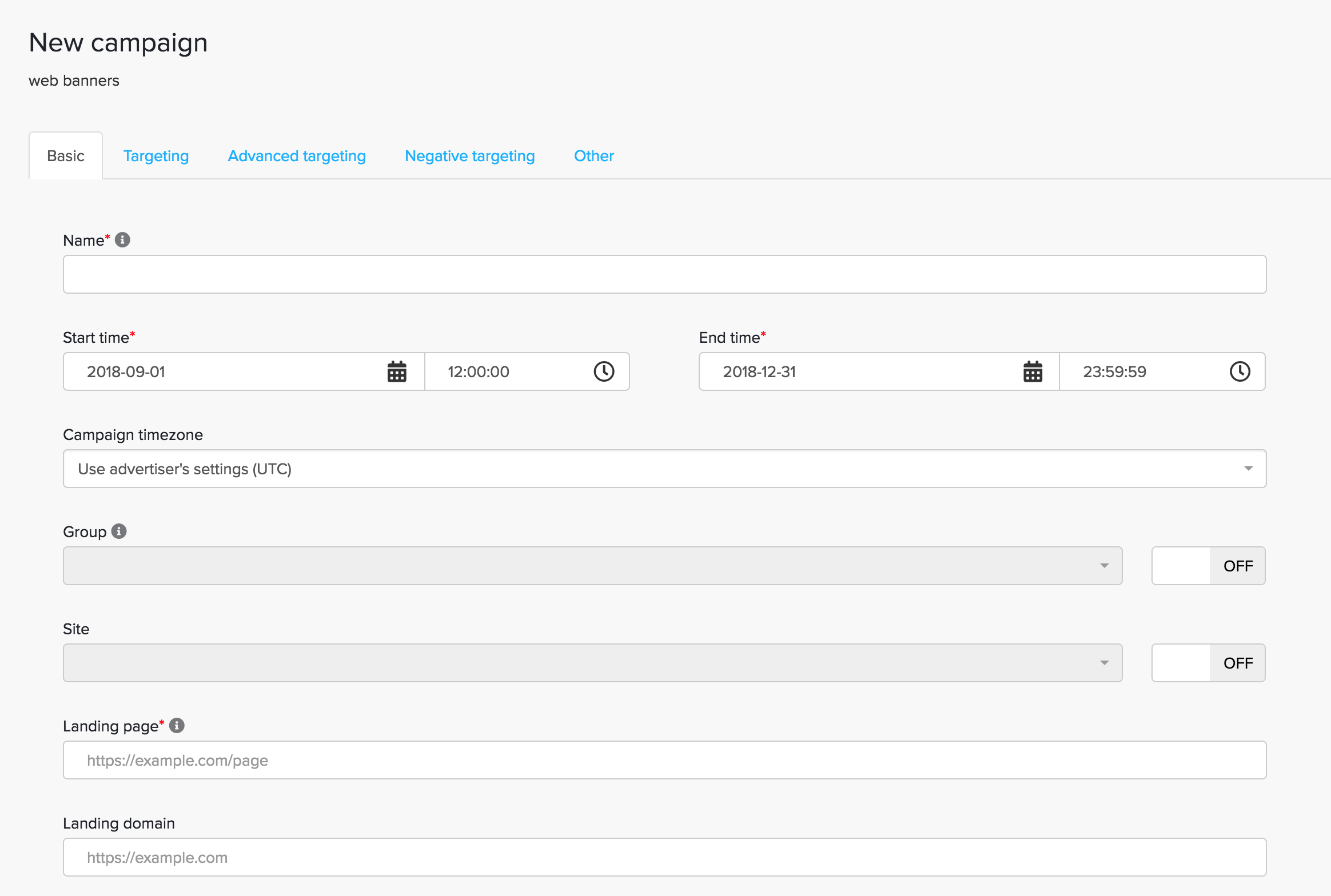
First, you have to fill basic fields:
...
.
...
Name
- enter the campaign name. The name must be entered in Latin alphabet with no spaces, in order to use it in UTM-tag if needed.
...
Start Time - End Time - enter the campaign period. The campaign budget will be spread evenly over this timeframe
...
.
Campaign timezone - enter the campaign timezone, the default value is UTC.
Group - enter a
...
Site
- this field is for a dynamic retargeting. For more information
...
see Retargeting.
Landing page - enter the URL of the landing page (direct or through a tracking system).
...
Landing domain - enter the landing domain (optional).
Second, you have to adjust the budget:
Pricing
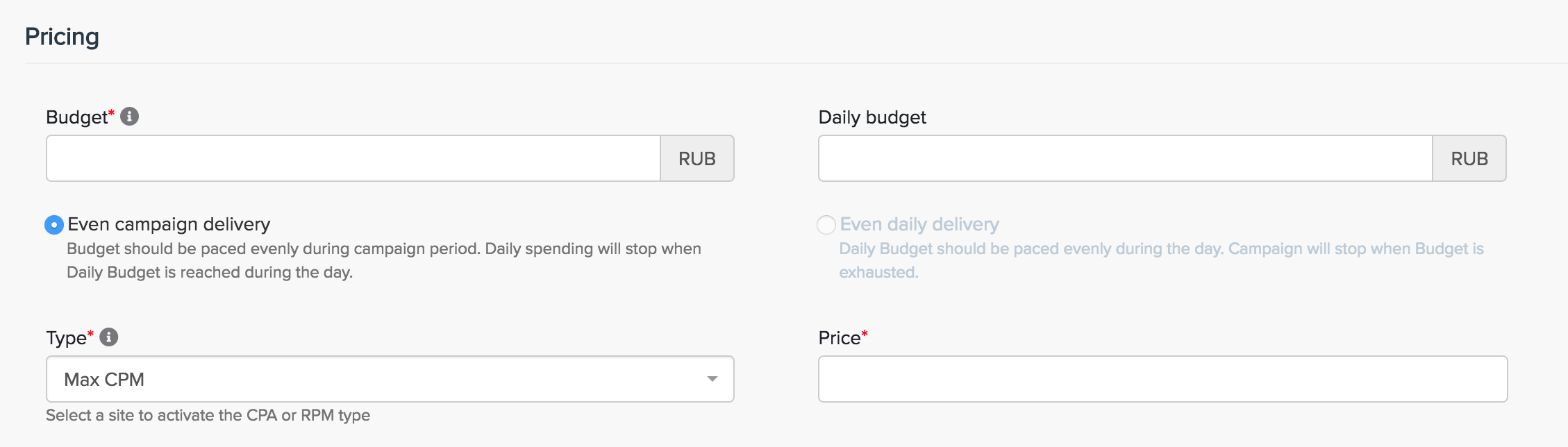
Budget
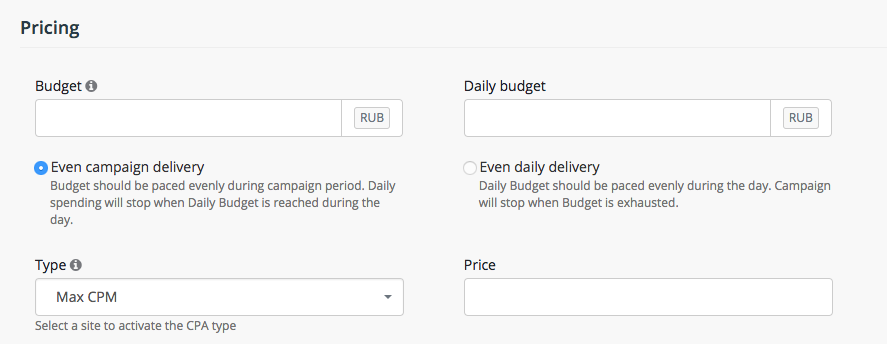
- enter the budget of the campaign (excluding tax).
«Daily Budget»Daily Budget - a daily budget limit for a campaign (excluding tax).
«Even Even daily/Even campaign delivery» - choosing one of those options, you will have your budget spent in different ways. With even campaign delivery, your budget is delivery
- With Even campaign delivery your budget will be paced evenly during the campaign period
- With Even daily campaign delivery your campaign will be paced evenly during the day.
«Type» Type - choose one of the following options:
- Target CPC – this option runs the Click Predictor algorithm, which will keep the cost of clicks equal to or lower than the value in the
- Price field to the extent
- possible. This option does not work in all cases because it depends on many factors: creative materials, client’s business area, etc
- .
Creatives
Client is able to see only the final billing, which already includes the agency commission.Third, you have to attach your creatives to the campaign:For Banners Campaign you can attach
standartstandard, third-party or dynamic types of previously uploaded creatives, by using "creatives" field and choosing from your list of previously
uploaduploaded creatives. To see, how to upload and add creatives to your advertiser account, see Creatives
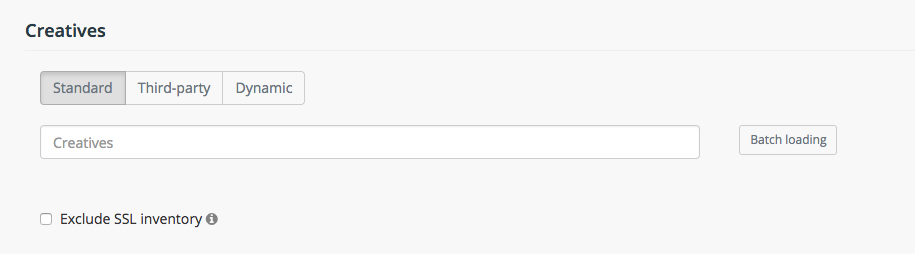
Creatives types:
"Standart"- Standard
- - graphical creatives (.png, .jpg, .gif etc.) and HTML5
- Third
- party
- - a tag that is delivering from an external server
- -
- see Third-party tags
- Dynamic
- - a tag that lets advertisers personalize every ad impression they serve by featuring products or content recently viewed or otherwise relevant to the user.
Exclude SSL inventory - In all campaign types, you can choose to Exclude SSL inventory, in order to prevent pixels without HTTPS support from loading on HTTPS websites.
For Native campaigns you can upload your native creatives:
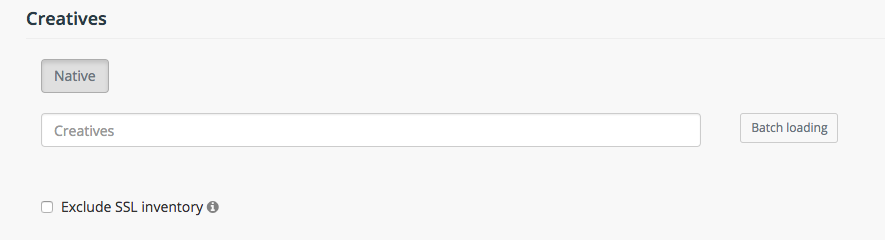
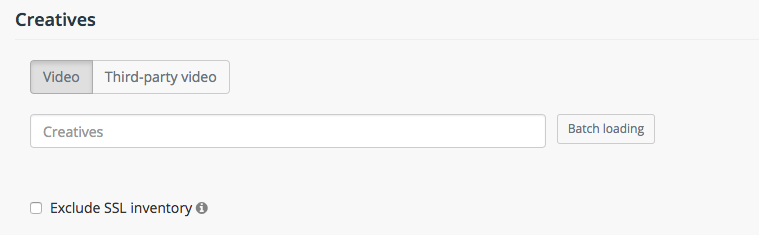 In all campaign types you can choose to Exclude SSL inventory, in order to prevent pixels without HTTPS support from loading on HTTPS websites.
Targeting
In this section, we can set various rules for the campaign spendingtargeting.
| Информация |
|---|
| ||
NB! The more settings we apply, the more we restrict the campaign’s potential audience, resulting in a potential decrease in traffic. |
Geo
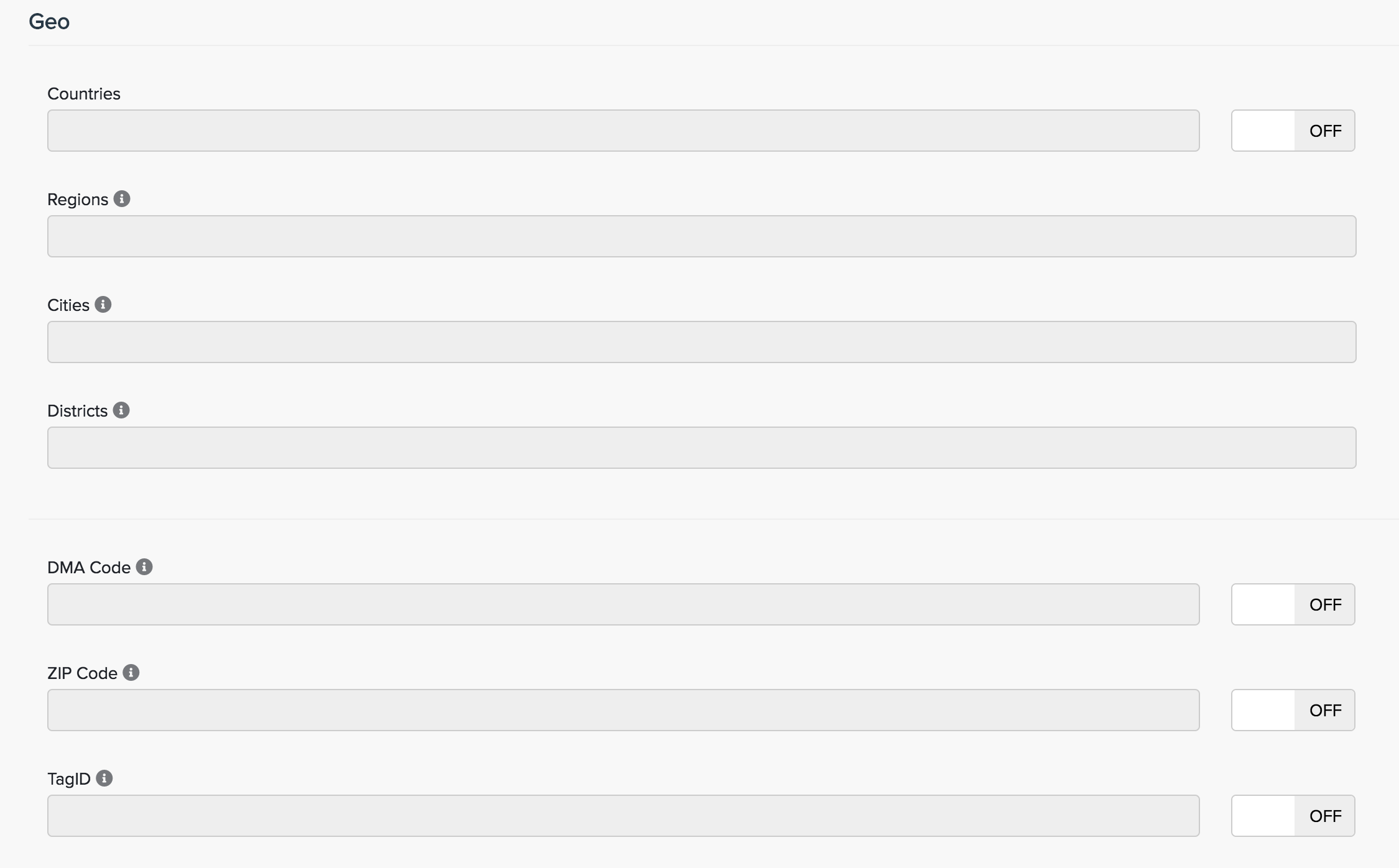
Countries - select countries which you would target.
Regions - select regions which you would target.
Cities - select cities which you would target.
Districts - available only in Russia. Select districts which you would target.
DMA code
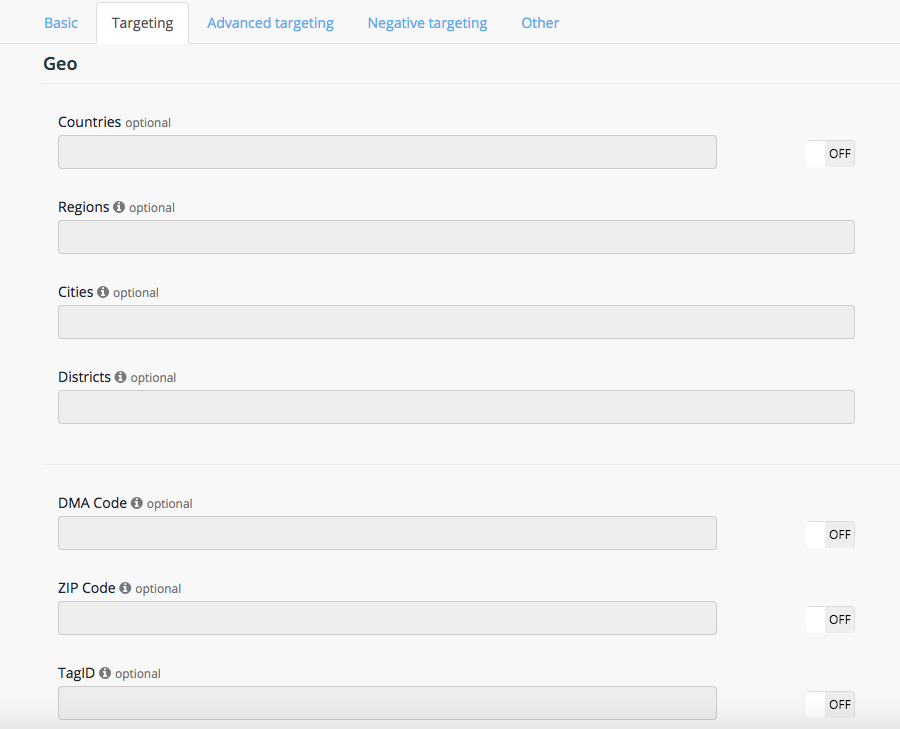
«Countries» - select the countries whose traffic you would like to target in the campaign.
«Regions» - select the regions whose traffic you would like to target in the campaign.
«Cities» - select the cities whose traffic you would like to target in the campaign.
«Districts» - available one for Russia
«DMA code» - a drop-down list of DMA codes. Select the DMAs whose traffic you would like to target in the campaign. Available only for in the US targeting.
ZIP Code «ZIP Code» - select the ZIP codes whose traffic you would like to target in the campaign. Available only for in the US targeting.
Tag ID «TagID» - placement ID on publisher's website.
And add some other rules:
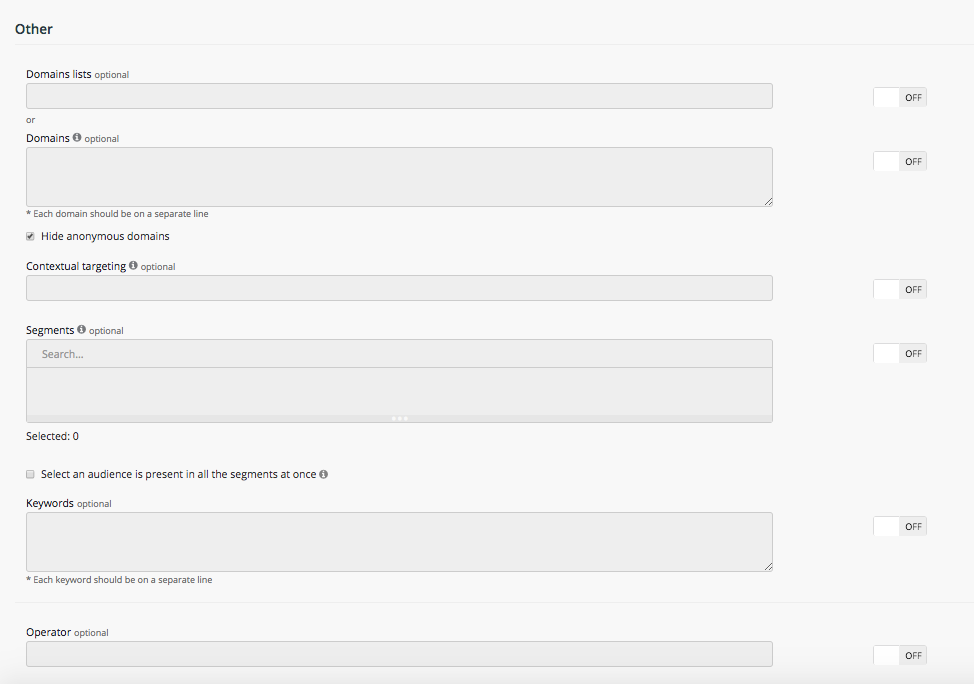
«Domains lists»
Other
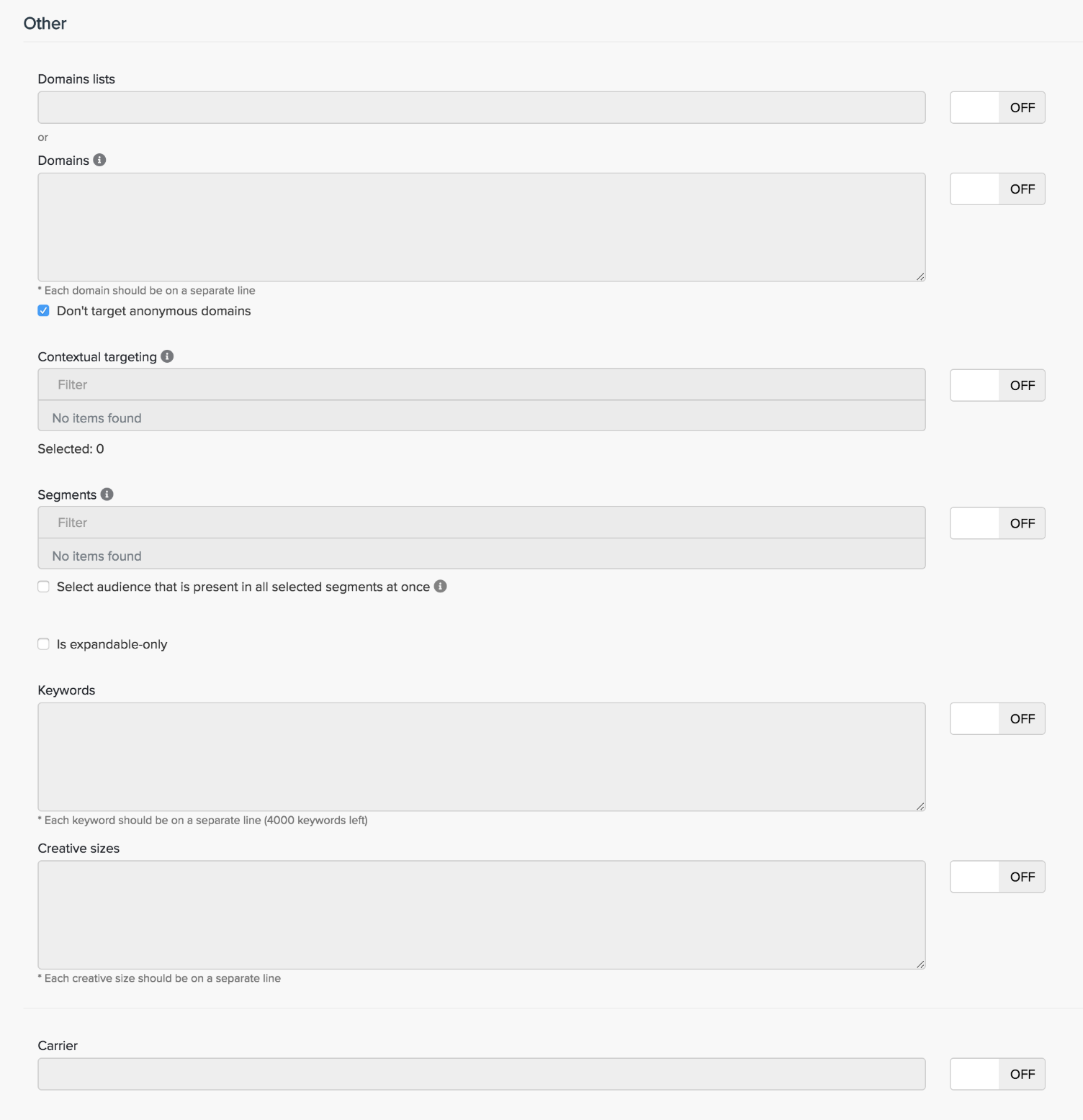
Domains lists - choose custom
domaindomains lists (default lists of theme-based Web sites are available). More information about creating a domain list
cancan be found in the section: Domains lists.
Domains -
select the domains whose traffic you would like to target in the campaign. The list of domains can be found under
thethe link
If the checkbox "
HideDon’t target anonymous
domainsinventory" is active, the campaign will be broadcasted only on
openedopen domains.
Contextual targeting - select a context of domains where you are going to launch your campaigns
Segments «Segments» - selecting specific segments for publishing:
- Inner segments (retargeting) –
- need to be created manually.
- Placing a pixel on a client’s
- website is required too. Learn
- more in section: Retargeting.
- External segments - the same as interests or demographics.
- Using these segments
- increase CPM to the value that is specified after the name of the segment.
- Learn more in section: DMP.
If the checkbox "Select an audience is present in all the segments at once " is active, your creatives will be shown to those who are present in all the segments selected at once.
«Keywords»Is expandable-only - select to use only expandable ad placements.
Keywords - select the keywords , to which your targeting target audience corresponds.
Creative sizes - select the creative sizes to which your campaign will target on.
«Operator» Carrier - select the mobile operator, on which you want your audience carrier to be targeted on.
Time targeting
You can also add time targeting and frequency capping:
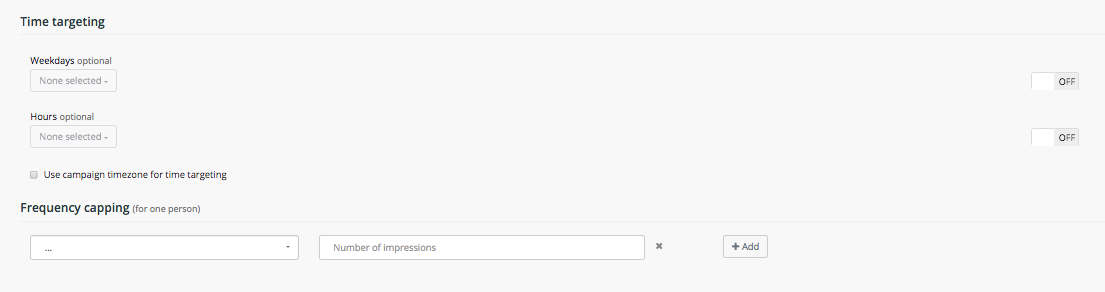
Here you can choose desired serving weekdays and hours of your campaigns.
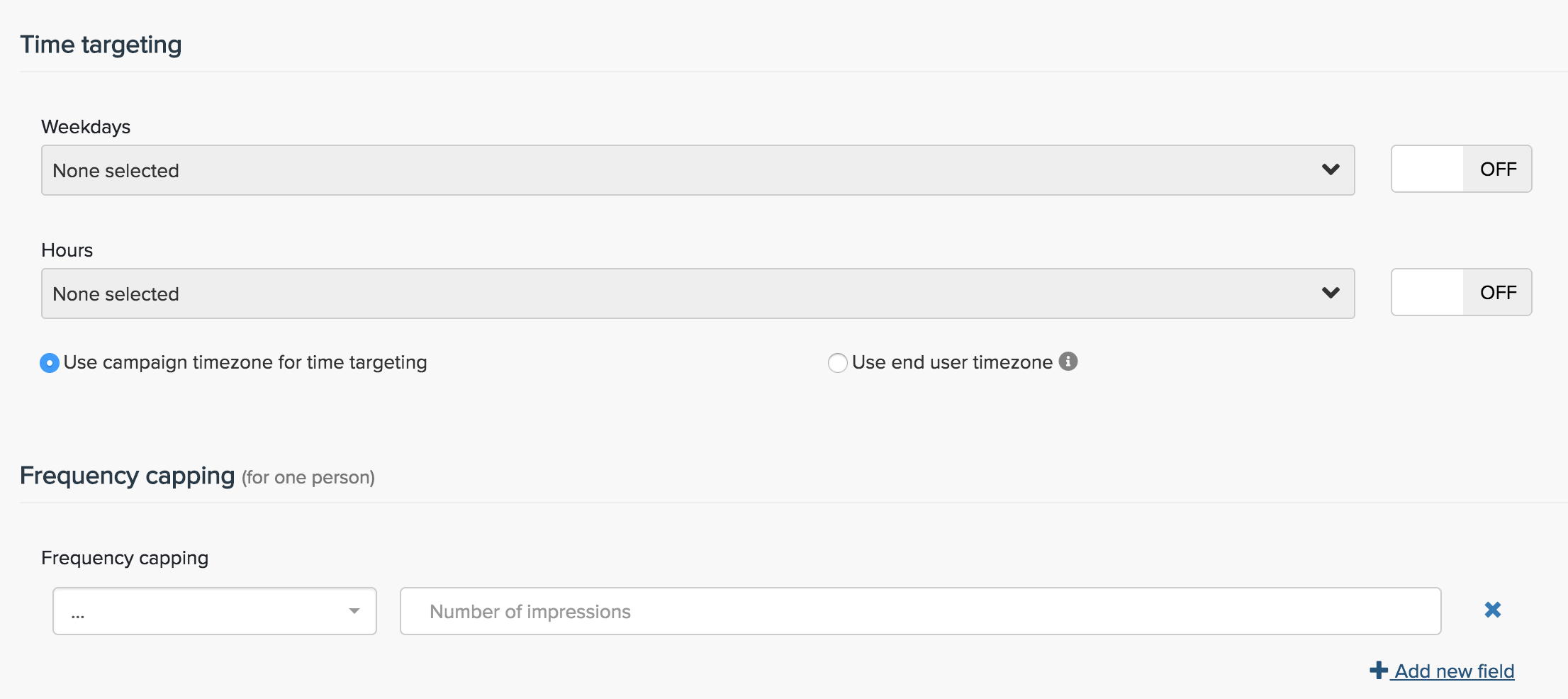
Use campaign timezone for time targeting or Use end user timezone:
- Use campaign timezone for time targeting - The campaign will be broadcasted in time of the configured timezone (check Basic tab for configuring campaign timezone). If you did not configure a timezone of the campaign it will be broadcasted in UTC timezone by default.
- Use end user timezone - The campaign will be broadcasted in the timezone of the person who sees the ad.
Frequency capping - here you are able to choose a Choose desired serving weekdays and hours, and number of impressions per hour, day, week or month.
Advanced Targeting
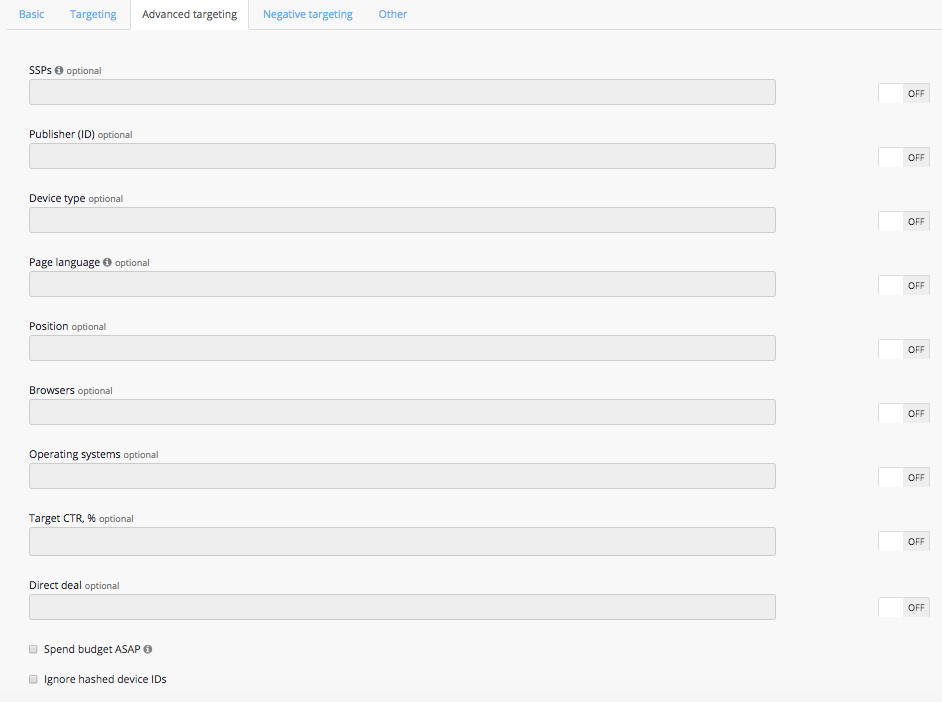
SSPs - select
the SSPSSPs on which
you would like to broadcast the campaign. (by default, allyour campaign will be broadcasted. (All the SSPs are selected by default).
«Publisher ID»Publisher ID - select
thea publisher on which you would
want to to broadcastlike to broadcast your campaign.
«Device type»Device type - select
the typetypes of
devicedevices you would like to target.
«Page language»Page language - select
thea language page
display language. This information is provided by SSP. This information is not available for all websites in the network, so setting a target may significantly reduce the amount of available traffic.
«Position»Position - select
thea position of
thea banner on the display page. This information is provided by SSP.
This target drastically reduces the amount of available traffic as not every SSP provides this information.
«Browsers»Browsers -
Select theselect browsers
thethat campaign will target.
«Operating systems»Operating systems - select
theoperating systems to target
for the campaign.
«Browsers» - Select the browsers the campaign will target«Target CTR, %»
Operating systems versions - select versions of operating systems to target. Input e.g. "5" to buy 5.1, 5.2, 5.3, "6" to buy 6.1, 6.2 etc.
Target CTR, % - use this field to set the target CTR. Using this
onlymakes sense
whenonly when there is an agreement with the client
onabout this value. In all other cases, it is better to use Target CPC in the
«Pricing»Pricing section.
Direct deal - use this field
to insert direct deal ID for desirable.

Ads.txt status - target your campaigns to a specific Ads.txt status.
If the checkbox "Spend budget ASAP" is active, your campaign will be displayed with maximum possible speed within a specified target and budget. Specify advertisement budget to avoid overspending.
If the checkbox "Full screen only" is active, your campaign will be displayed on a full screen only ad sizes.
For video campaigns:
If the checkbox "VPAID" is active, the campaign will bid only on VPAID API supporting inventory.
If the checkbox "Rewarded video" is active, the campaign will be targeted on video inventory that users have the option of watching in exchange for rewards (game currency, bonuses, etc.).
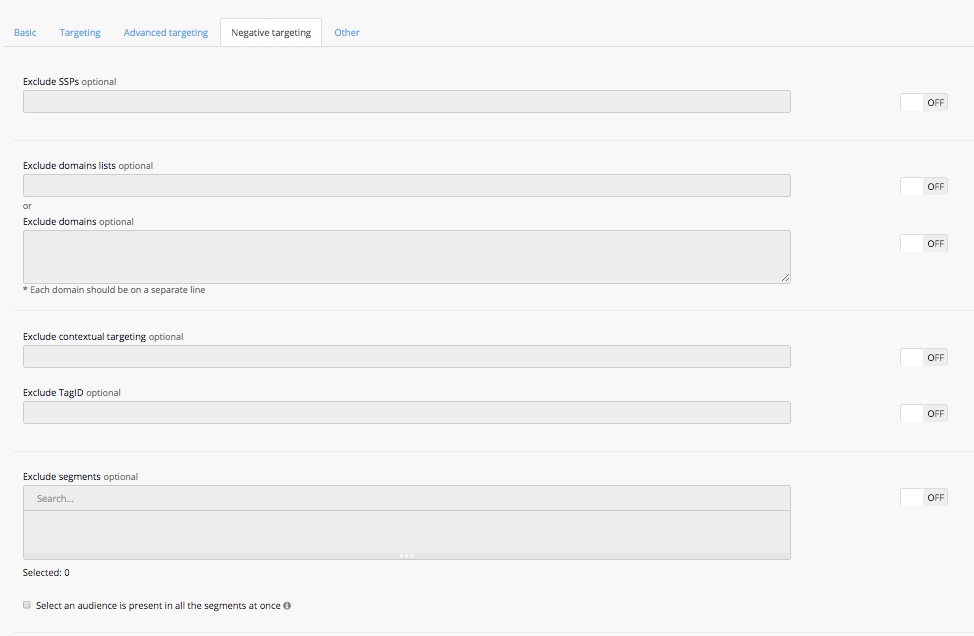
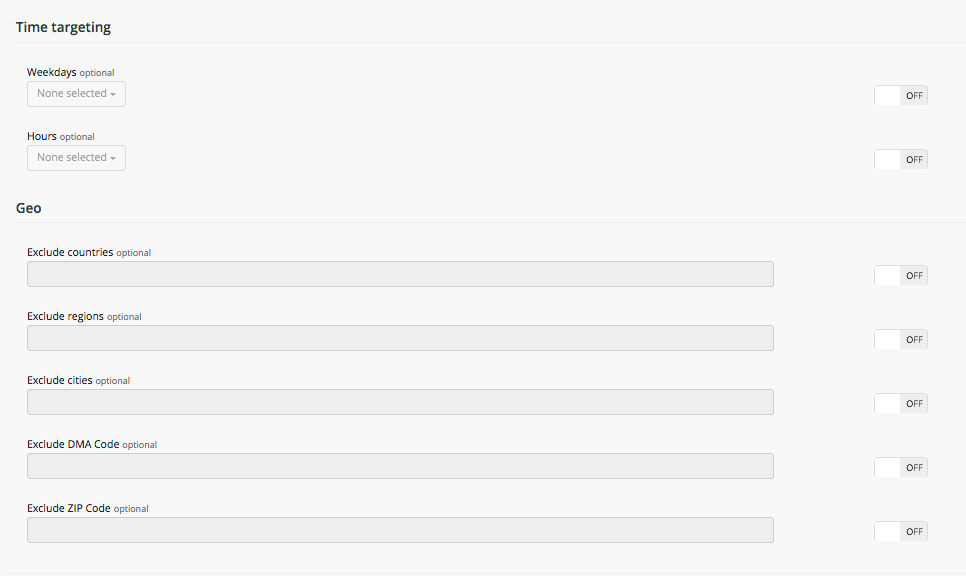
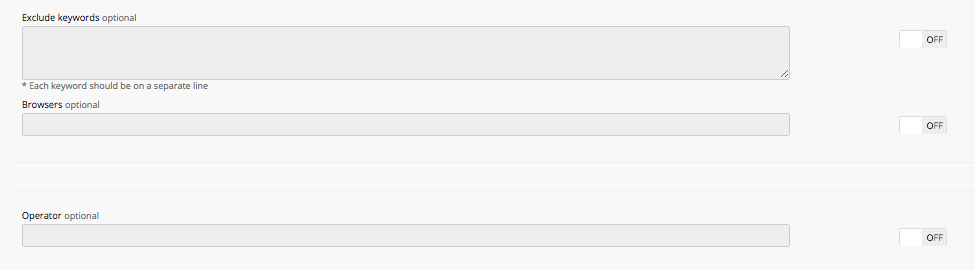
Negative Targeting
Other options
:On the "Other" tab you can set some additional rules:
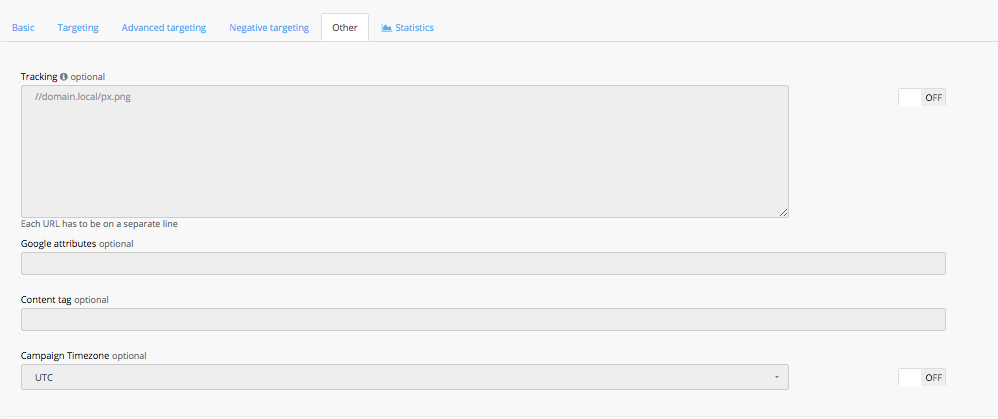
«Tracking» Tracking - you can insert your tracking pixel URL into this field to track impressions (drop "httpHTTP" from your tracking pixel URL and insert it into the field).
«Google attributes» Google attributes - insert Google attribute you want to track. You can see the drop-down list of available attributes inside the field.
«Content tag» Content tag - insert content tags you want to target.
«Campaign timezone» Campaign timezone - set the timezone time zone for your campaign to reflect in the reports.
...