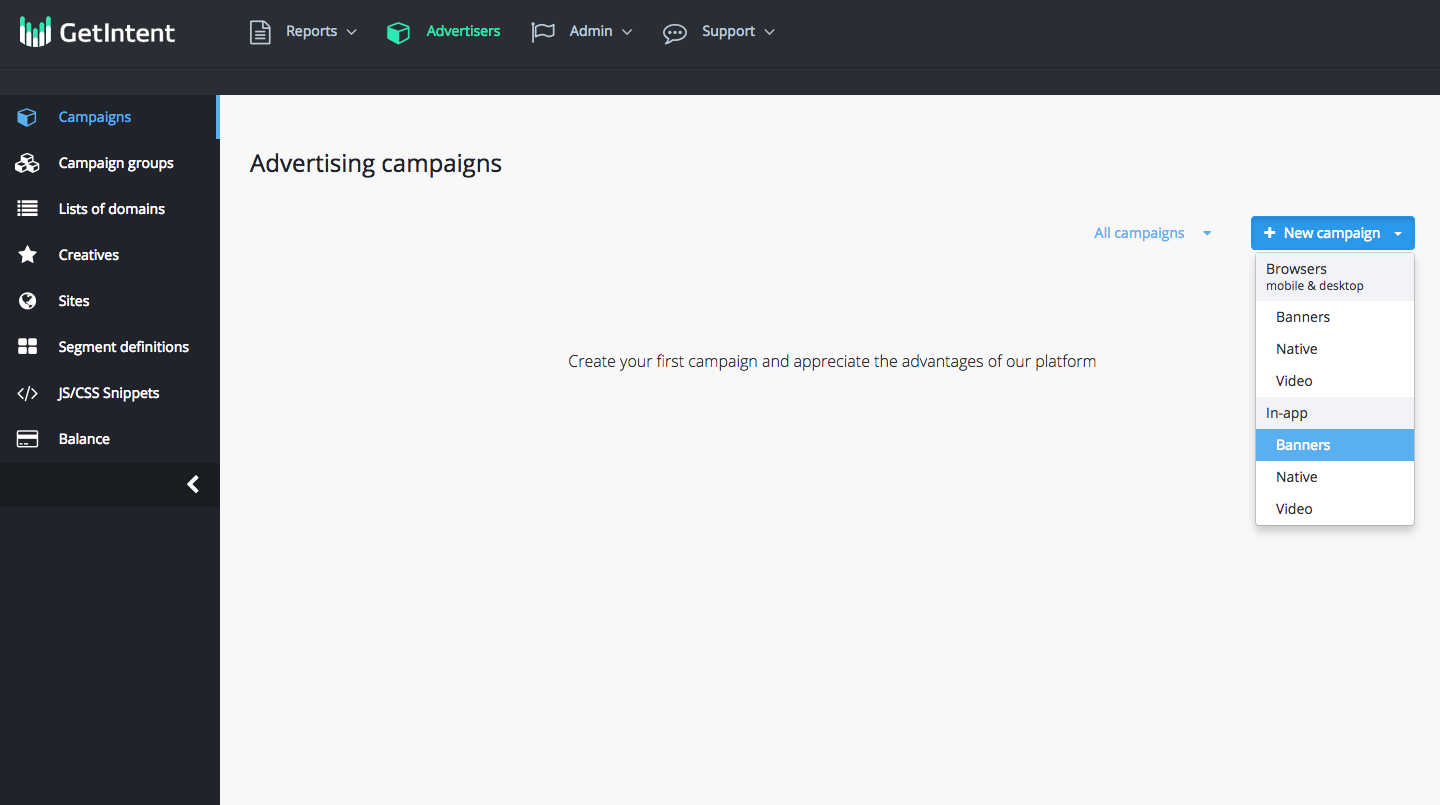
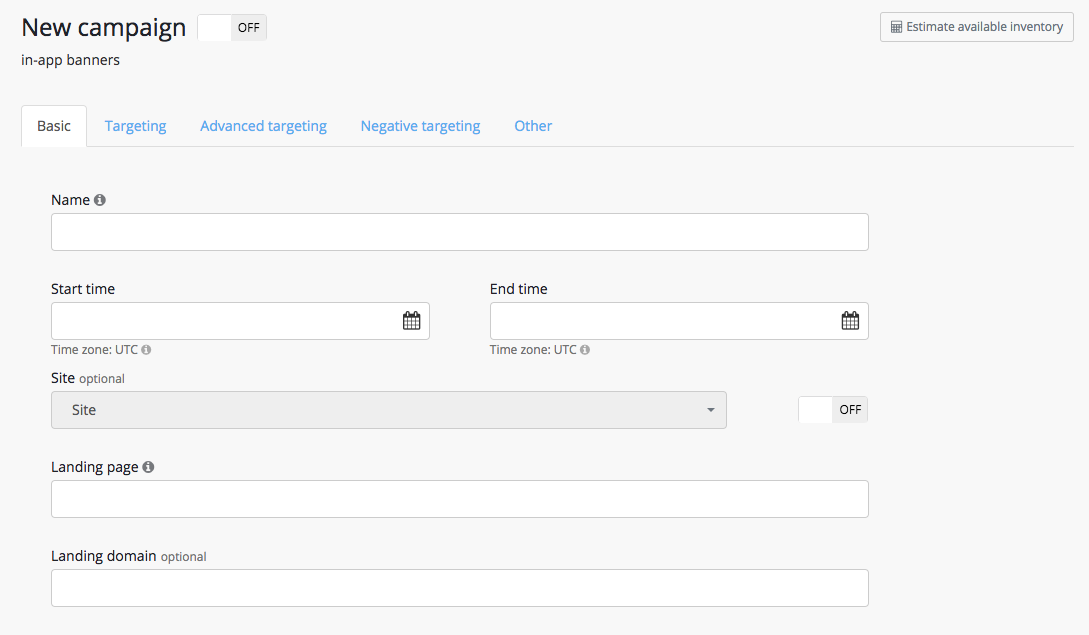
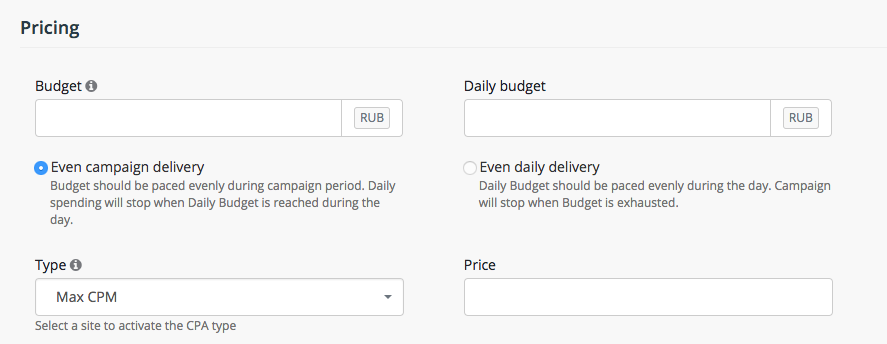
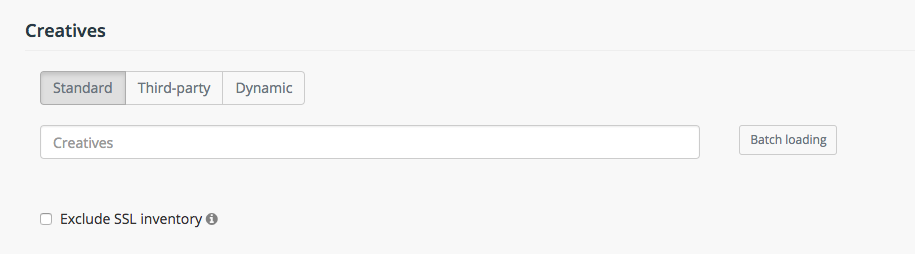
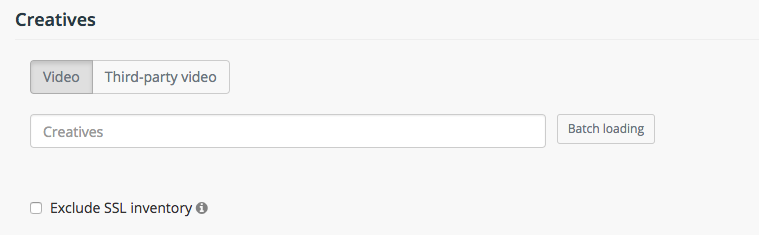
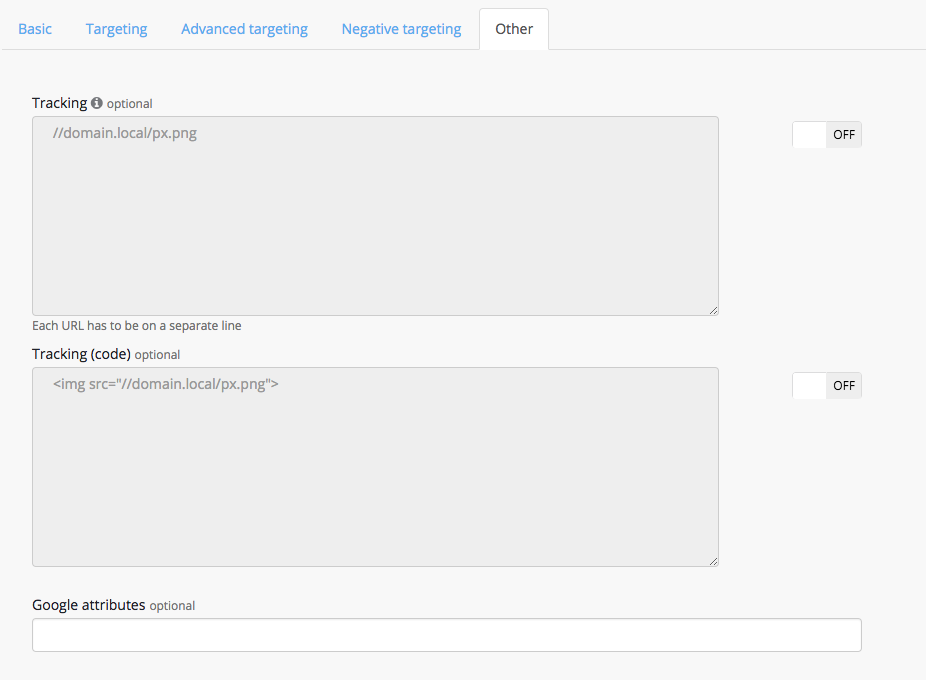
And for video campaigns you can choose between direct video and third-party video:
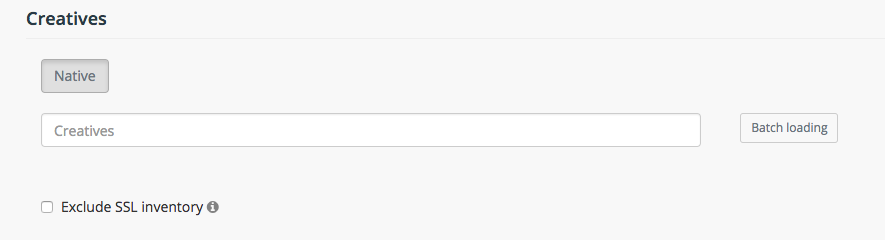
In all campaign types you can choose to Exclude SSL inventory, in order to prevent pixels without HTTPS support from loading on HTTPS websites.
Targeting
In this section we can set various rules for the campaign spending.
NB! The more settings we apply, the more we restrict the campaign’s potential audience, resulting in a potential decrease in traffic.
You can start from geo adjustments:
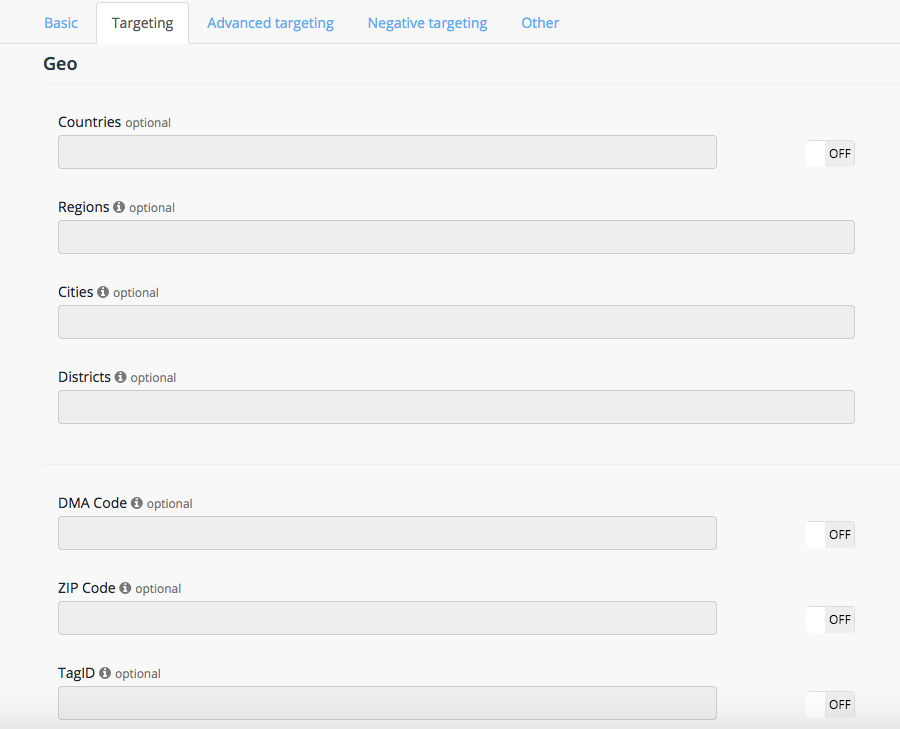
«Countries» - select the countries whose traffic you would like to target in the campaign.
«Regions» - select the regions whose traffic you would like to target in the campaign.
«Cities» - select the cities whose traffic you would like to target in the campaign.
«Districts» - in this field it is possible to select districts on whose traffic we want to broadcast the campaign. The district targeting is available only if the city "Moscow" is selected. Data format: CAO, SAO, SVAO, UAO, UVAO, UZAO, VAO, ZAO
«DMA code» - a drop-down list of DMA codes. Select the DMAs whose traffic you would like to target in the campaign. Available only for US targeting
«ZIP Code» - select the ZIP codes whose traffic you would like to target in the campaign. Available only for US targeting
«TagID» - placement ID on publisher's website.
And add some other rules:
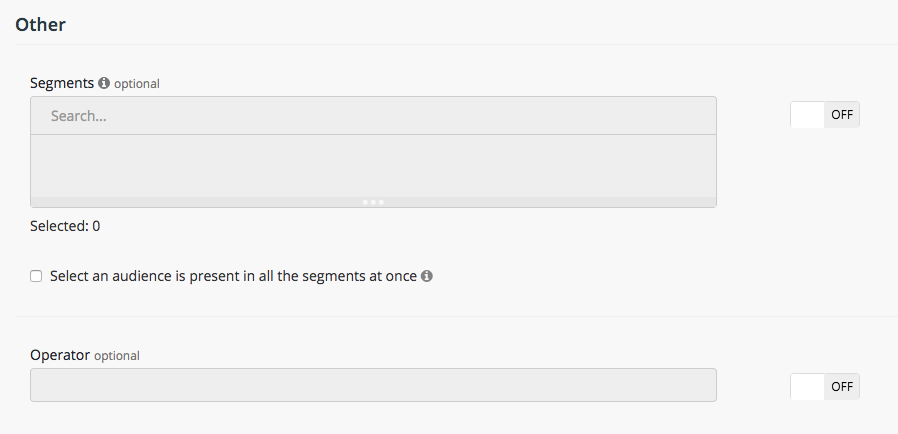
«Segments» - selecting specific segments for publishing:
Inner segments (retargeting) – are to be created manually. Placement of the pixel on a client’s web site is required. Learn mote in section: Retargeting.
External segments - the same interests or demographics. The use of these segments increases the CPM to the value that is specified after the name of the segment. Learn mote in section: DMP.
If the checkbox "Select an audience is present in all the segments at once " is active, your creatives will be shown to those who are present in all the segments selected at once.
«Operator» - select the mobile operator, on which you want your audience to be targeted on.
In mobile campaigns, some in-app targeting options are available:
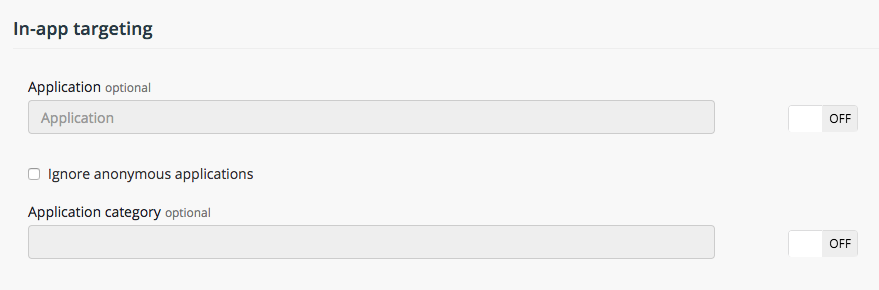
«Application» - in this field it is possible to specify applications to target on. The list of available apps is available here
«Application category» - a drop-down list with application categories available to target on.
Please note that it is important to use exactly the same names as in reports.
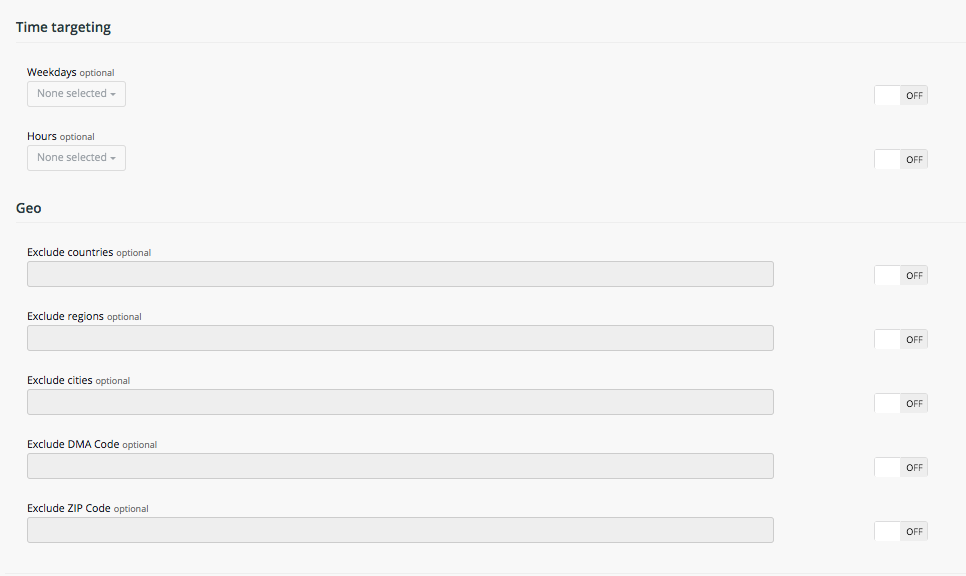
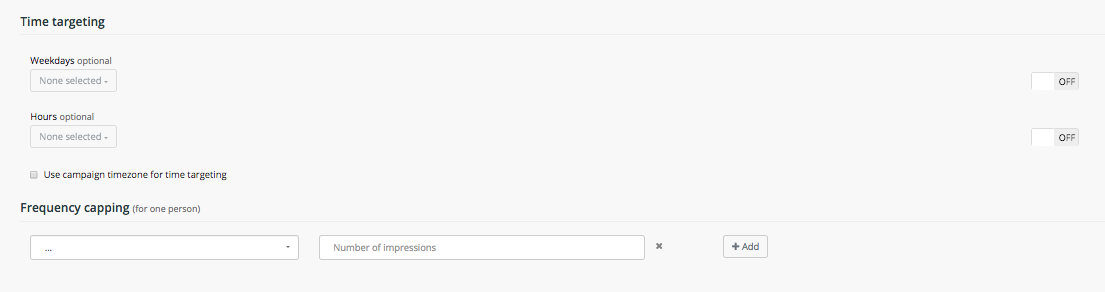
You can also add time targeting and frequency capping:
Choose desired serving weekdays and hours, and number of impressions per hour, day, week or month.
Advanced Targeting
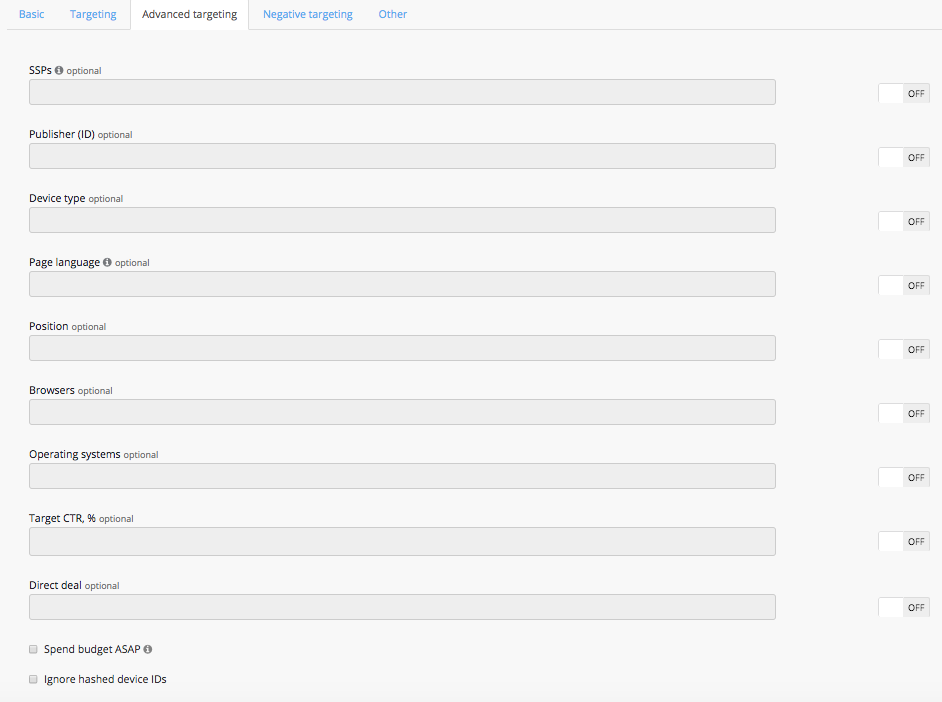
«SSPs» - select the SSP on which you would like to broadcast the campaign. (by default, all the SSPs are selected)
«Publisher ID» - select the publisher on which you would want to to broadcast your campaign.
«Device type» - select the type of device you would like to target.
«Page language» - select the page display language . This information is provided by SSP. This information is not available for all websites in the network, so setting a target may significantly reduce the amount of available traffic.
«Position» - select the position of the banner on the display page. This information is provided by SSP. This target drastically reduces the amount of available traffic as not every SSP provides this information.
«Browsers» - Select the browsers the campaign will target
«Operating systems» - select the operating systems to target for the campaign.
«Browsers» - Select the browsers the campaign will target
«Target CTR, %» - use this field to set the target CTR. Using this only makes sense when there is an agreement with the client on this value. In all other cases it is better to use Target CPC in the «Pricing» section.
«Direct deal» - use this field to insert direct deal ID for desirable.
If the checkbox "Spend budget ASAP" is active, your campaign will be displayed with maximum possible speed within a specified target and budget. Specify advertisement budget to avoid overspending.
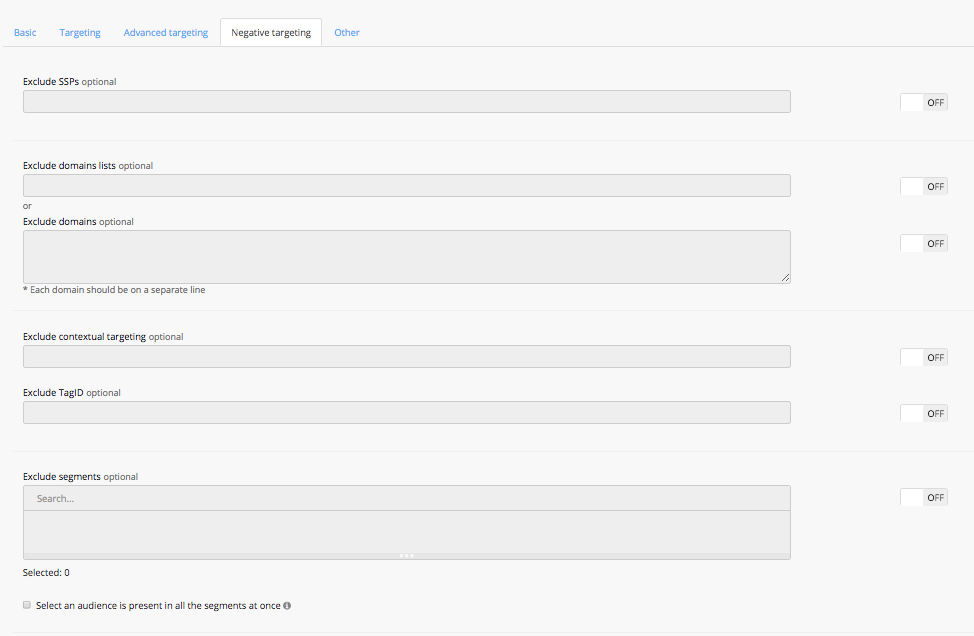
Negative Targeting
This section is designed to capture any exclusions from targeting.
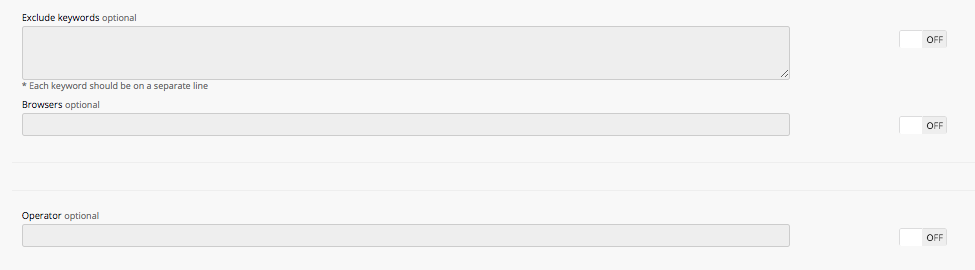
Campaign will not be broadcast to any of the rules selected in the negative targeting section: