Creative upload menu is accessible via the left section of the GetIntent UI.
To upload a creative, press the New creative button and select the required creative type from the drop-down menu
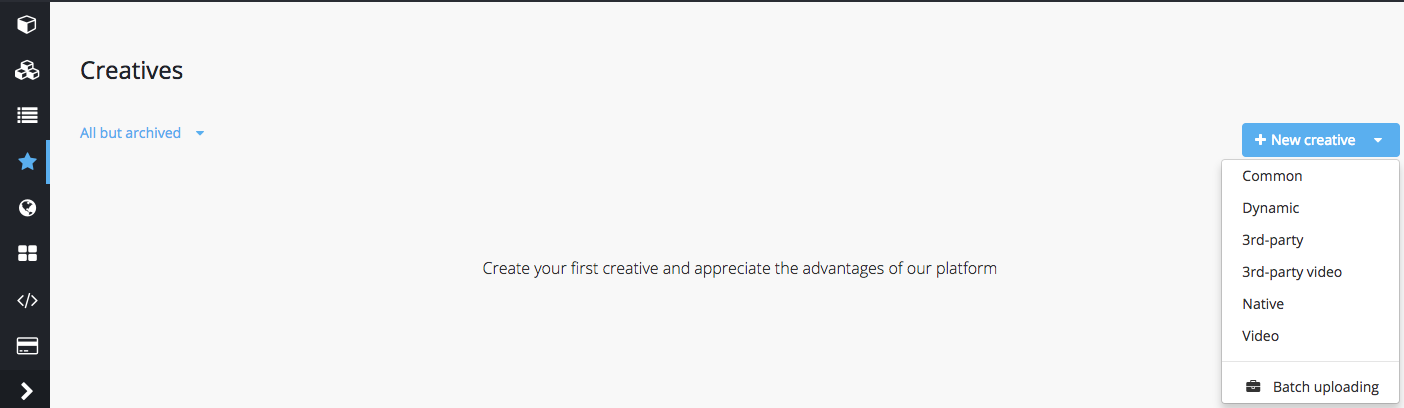
Be sure to check the technical requirements for the selected creative type before uploading files.
Upload files and fill in the required information to finish creating an item.
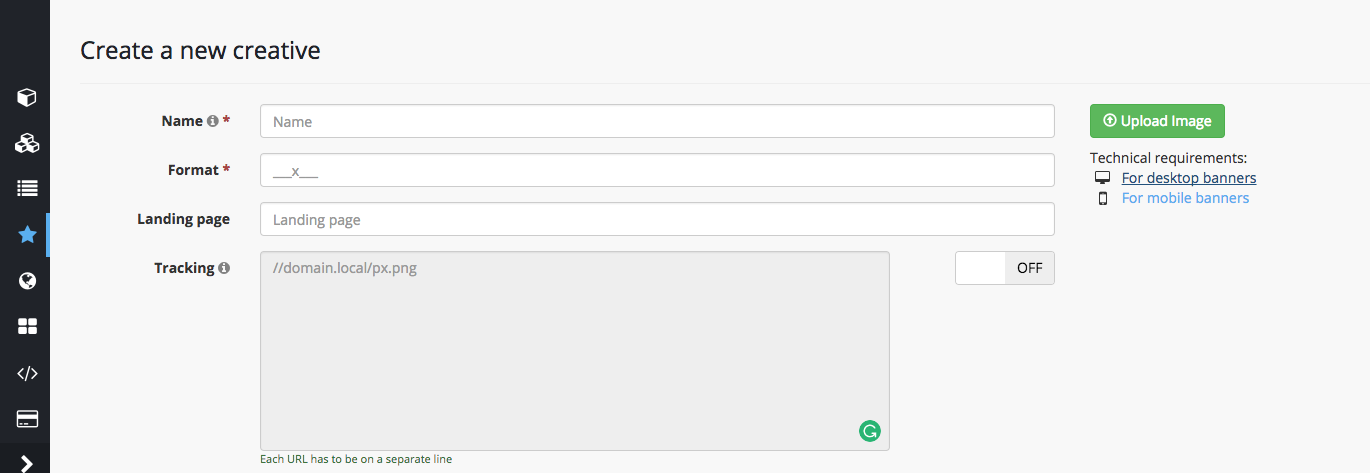
Once uploaded, creatives will be automatically sent for approval (moderation).
Note: some SSPs have additional approval measures which may require assigning your creative to an active campaign
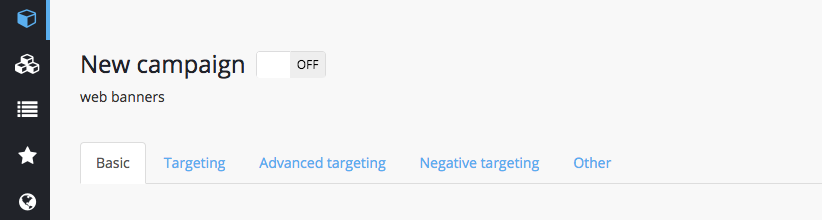
To assign a creative to a campaign, proceed to the Basic campaign settings and scroll down until block entitled "Creatives".
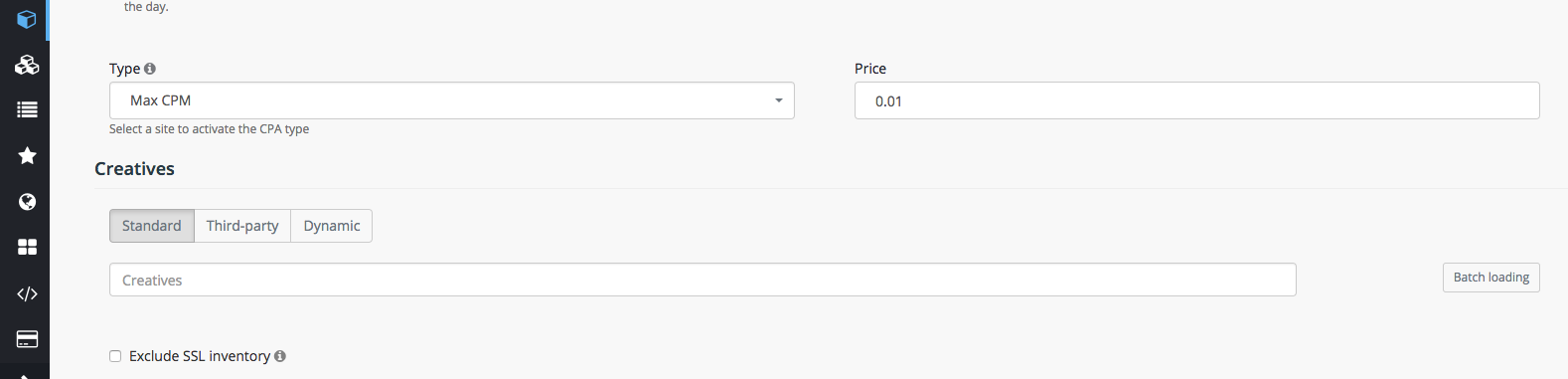
Start typing in the name or the ID of uploaded creatives, that you wish to add to the campaign. Select relevant creatives from the drop-down menu
If you have multiple creatives to upload you can use the batch loading function located in the basic campaign settings.
Do not forget to save your progress on the bottom of the page.