-
Создана пользователем
 Неизвестный пользователь (gplotnikov). Последнее обновление: июл. 10, 2017 ( Неизвестный пользователь (ebortnikova))
Время чтения: 2 мин.
Неизвестный пользователь (gplotnikov). Последнее обновление: июл. 10, 2017 ( Неизвестный пользователь (ebortnikova))
Время чтения: 2 мин.
After placing Getintent pixels on advertiser's site/newsletter (for more details JS pixels placing specification and Non-JS pixels placing specification (mailing, etc.)) create and configure retargeting segments in the Getintent interface.
1. Go to «Segment definitions» tab and click "Create new segment":
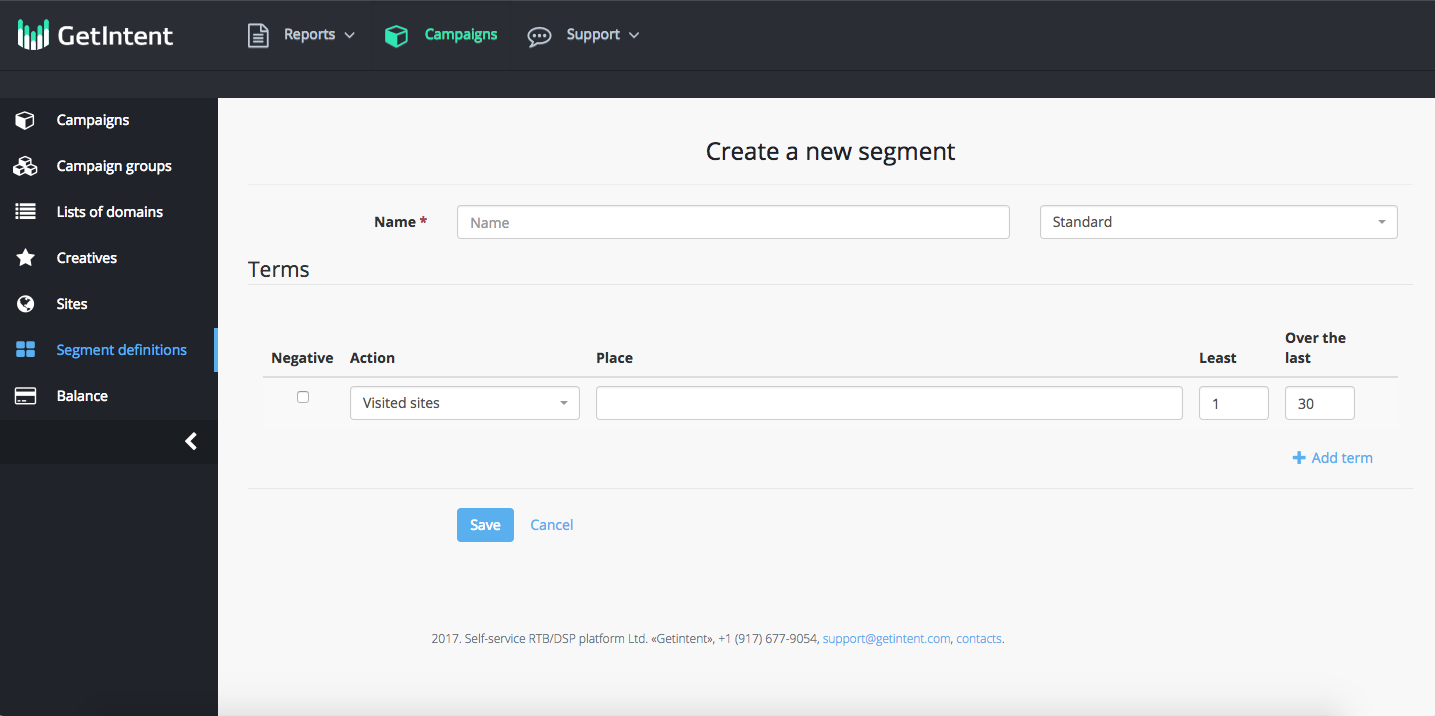
2. Create a new segment:
Name: name a new segmnent (use the Latin alphabet)
Terms – in this section you can add different rules for segments.
Checkbox "Negative" - when you activate this checkbox it activates an excluding logic for this rule.
Action – select the rule for users tagging (for all the actions functioning install all three types of pixels on the site).
Least – in this field you can specify the number of repetitions of the selected action
Over the last – in this field you can specify the number of days in the previous period, which will be counted for the selected action (we recommend to use not more than 30 days).
An example of a customized segment rule: a user who visited the site, but didn’t make a purchase.
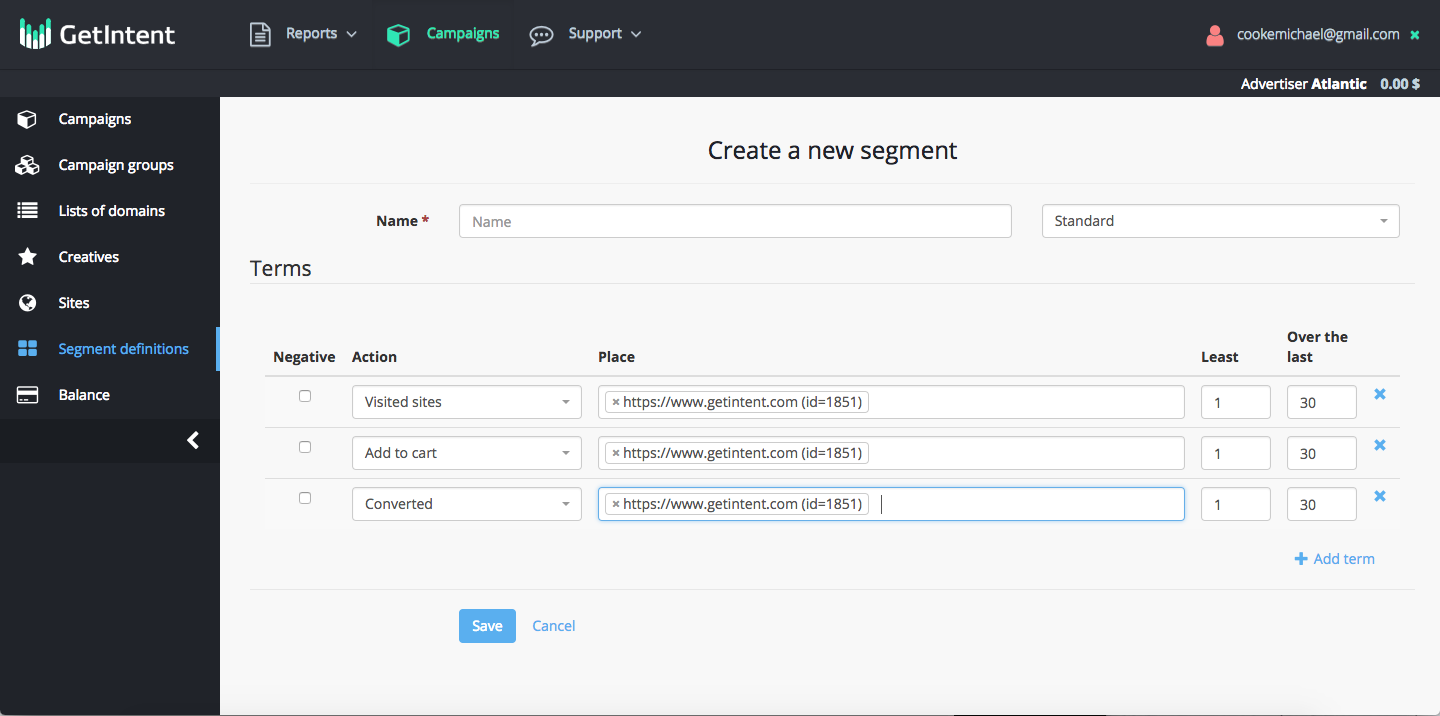
Then click the “Save” button.
Segment is added and can be used in Campaign Settings
After pixel has been successfully installed and segments have been created the volume can be seen (a statistics updates the day after creating a segment) in the "Segments" tab.