-
Создана пользователем
 Неизвестный пользователь (gplotnikov). Последнее обновление: авг. 11, 2017 ( Неизвестный пользователь (ebortnikova))
Время чтения: 3 мин.
Неизвестный пользователь (gplotnikov). Последнее обновление: авг. 11, 2017 ( Неизвестный пользователь (ebortnikova))
Время чтения: 3 мин.
Getintent lets you use Report Biulder, which provides flexible adjustment to get the necessary reports with filtering and grouping.
Available inventory for domains
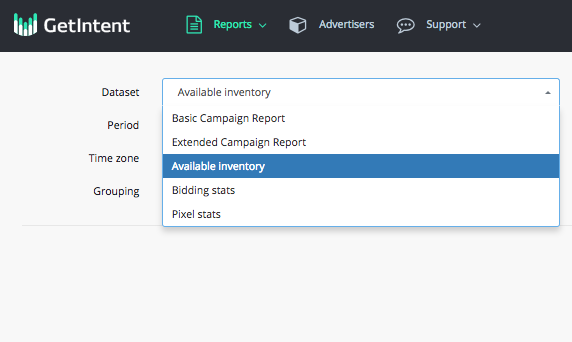
To build an available inventory report, go to the "Reports Builder" tab in the interface and select the "available inventory" dataset:
Available inventory for domains
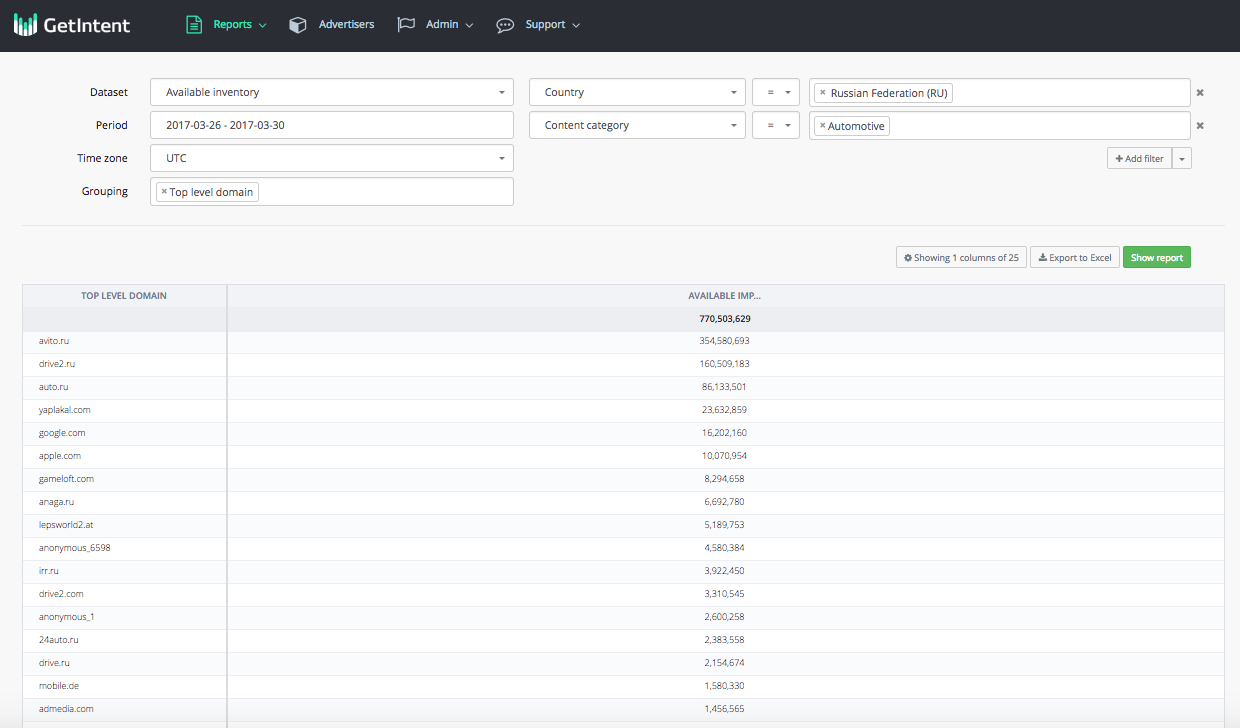
We can see two columns: domain name and the number of available impressions for it. It's better to include not much than 40% of the numbers in the report while preparing a media plan.
Available inventory (IBV inventory)
"Available inventory report" also allows you to see available inventory for in-banner video (IBV) traffic.
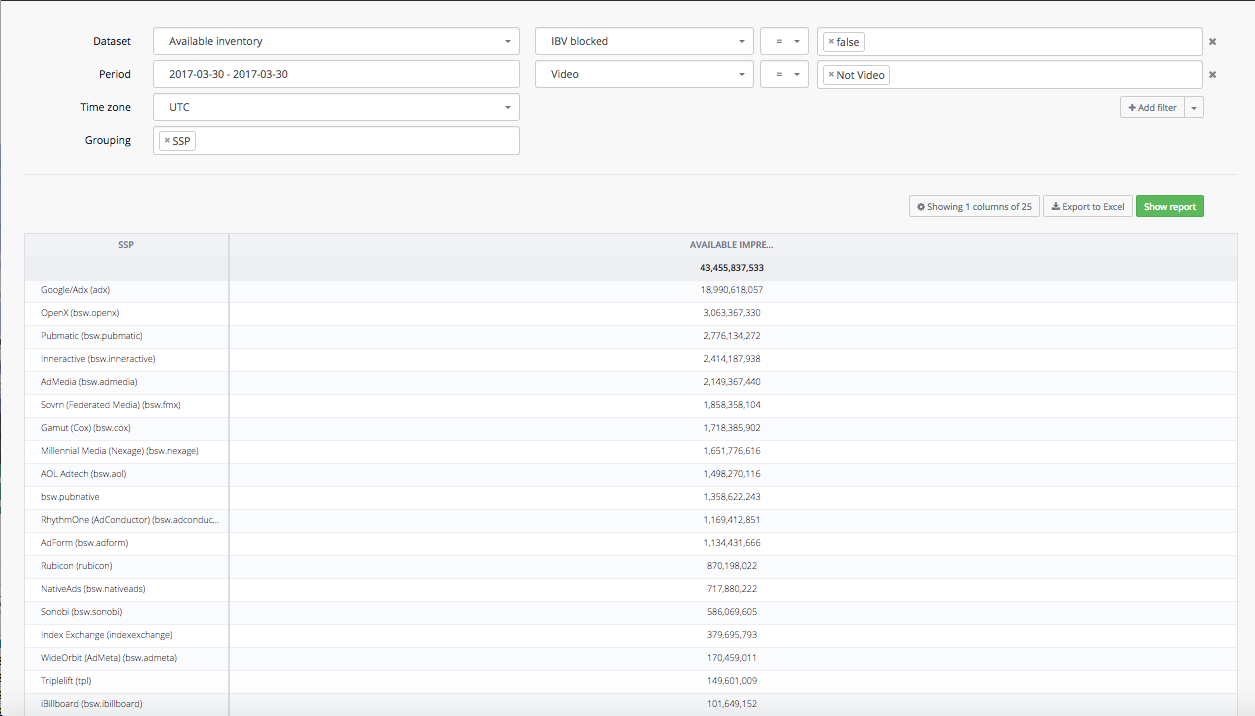
In order to do this, you must add the following filters to your report:

This willshowyoutheamountofavailableimpressionsfor IBV. Here's an example - the list of SSP with availableimpressionsfirIBV:
Available inventory (blocked advertisers)
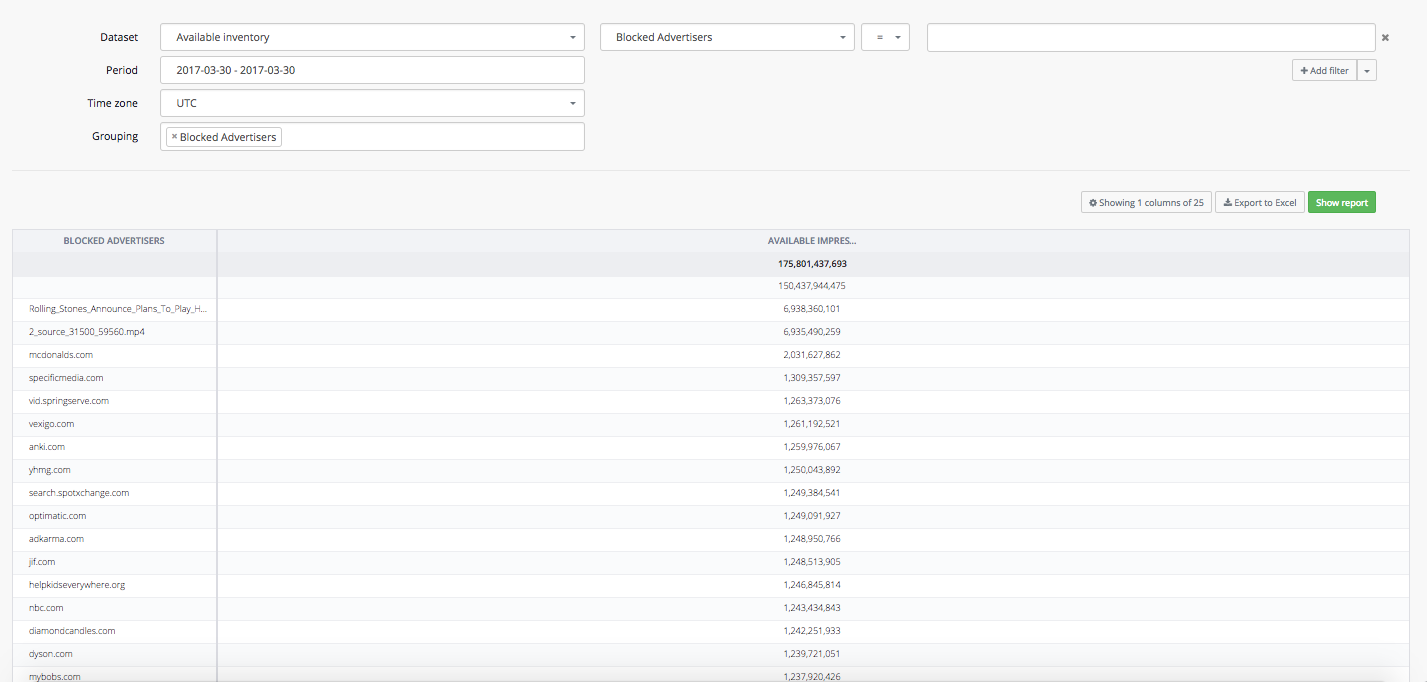
With "Available inventory report" you can gain access to the information about blocked advertisers, in order to exclude them from your campaign set-ups and targeting.
In order to build a report about blocked advertisers on the Getintent side, you can insert "Blocked advertisers" tag into Grouping field:
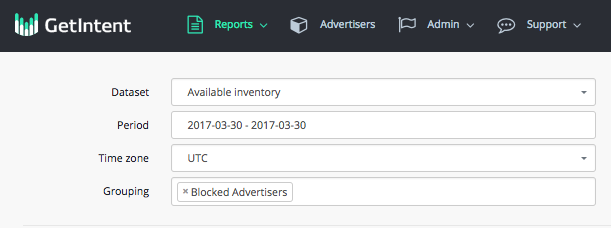
The report will show you all the blocked advertisers:
Available inventory for Native traffic
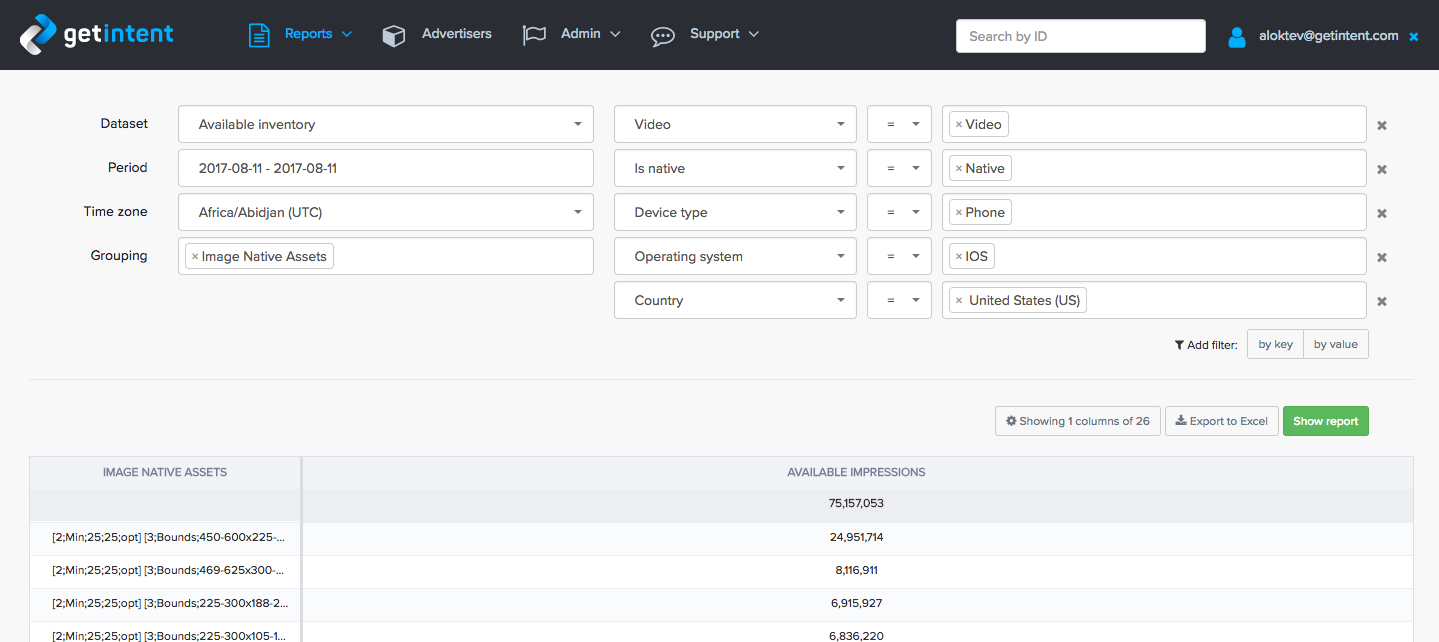
Estimating available native inventory requires additional filtering and grouping:
Filter
Add Is native = Native to filters to estimate native inventory
Image Native Assets (Grouping)
Lists all assets related to images, like Icon, Main Image, Logotype. Each image description is in [...] brackets.
Format of single image: [ {asset_type}; {size_type}; {size}; {opt/req} ], where:
- asset_type: 0 - None, 1 - Icon, 2 - Logo, 3 - Main Image.
- size_type: Possible values: Min (only minimal size is presented), Fix (only fixed image size), Bounds (size can vary from→to)
- size: actual size rule for the given size type
- opt/req: opt - optional asset, req - required asset
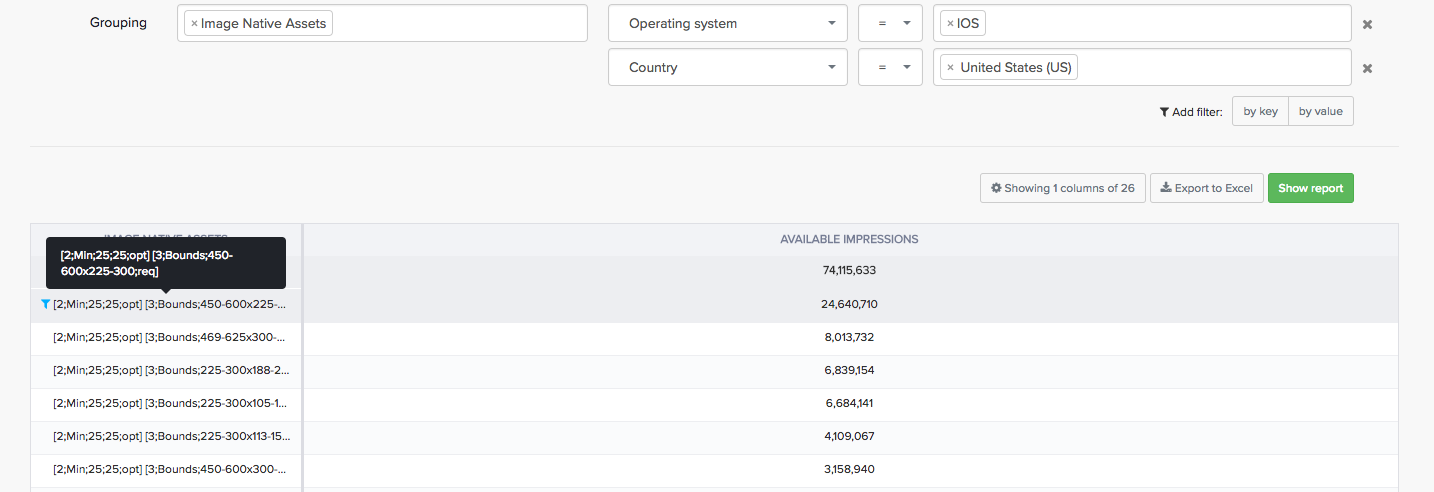
How to read Image native assets:
[3;Bounds;450-600x225-300;req] - [Asset type - Main Image; size_type - size can vary; size can vary within 450-600x225-300; Main image is required asset]